Features
Features
Mining#
Quick start
- Pick a coin: Pearl (PRL) and QTC are currently selectable; choices depend on the client catalog and GPU compatibility.
- Pick a pool: once a pool is picked, only the mining engines it can use are listed
- Pick a mining engine: Choose an available version from the current catalog; pin a version or import a verified custom version where supported.
- Enter your wallet: F2Pool takes only your pool username; Kryptex takes a username or a wallet address; other pools take a wallet address
- Pick GPUs: all means every GPU, or enter just 0 or 0,1,2
- Worker name: set your own prefix or add a random suffix in one click; Chinese characters, spaces and symbols are removed automatically
- Click Start: hashrate and shares show up within seconds to a few minutes
Full guide →
Mining engines & versions
- Auto (latest): Choose an available version from the current catalog; pin a version or import a verified custom version where supported.
- Pin a version: the dropdown lists version numbers; pick the one you want to keep
- Download on demand: Available peers in the same account and LAN can share verified download files; the server coordinates waiting and takeover. Predownload and installation are separate; Netbar master images still update manually.
- Backup download route: The main website download uses R2; Mirror 2 uses DEDI. Check the homepage SHA-256 after downloading.
- Matched to your GPU: NVIDIA and AMD cards only see engines they can run
Full guide →
Home screen & log
- Total hashrate and shares: accepted / rejected on one screen
- Pool balance and paid: shown right on the home screen
- Every GPU: its own hashrate, temperature and power
- Pool website: opens the pool's lookup page for your wallet in one click
- Floating window: a small desktop window that always shows your hashrate
- Log: shows only what matters to you; common errors come with the fix
- Server notices: important notices appear inside the client
Full guide →
Settings#
System settings
- Seamless auto-update: Automatic updates are optional and disabled in Netbar mode. Leaving Netbar does not turn them back on; update the master image manually.
- Scheduled mining: set a start and stop time to mine on a daily schedule; leave the stop time empty to keep mining
- Scheduled break: after 24 or 48 hours of nonstop mining, pause for 5 minutes and resume automatically
- Reboot on GPU driver crash: if the GPU driver crashes, the PC reboots and keeps mining afterwards
- One-click allow: if antivirus deletes the engine, one click adds Vminer to the exclusion list
Full guide →
Startup & background
- Start with Windows: Vminer opens when the PC boots
- Mine on launch: starts mining as soon as it opens — no click needed
- Close to tray: clicking X hides it in the bottom-right corner; double-click the tray icon to reopen
- Auto-reconnect: Choose Direct / CF. Direct keeps the selected node and your HTTP / SOCKS5 proxy. Interrupted connections retry by policy; temporary control-request failures do not actively stop healthy mining. Recovery depends on the network.
- Crash recovery: Unexpected faults receive limited conditional retries. A manual mining stop or normal Netbar yielding is not a fault; check the logs if a problem persists.
Full guide →
Power, fans & overclocking
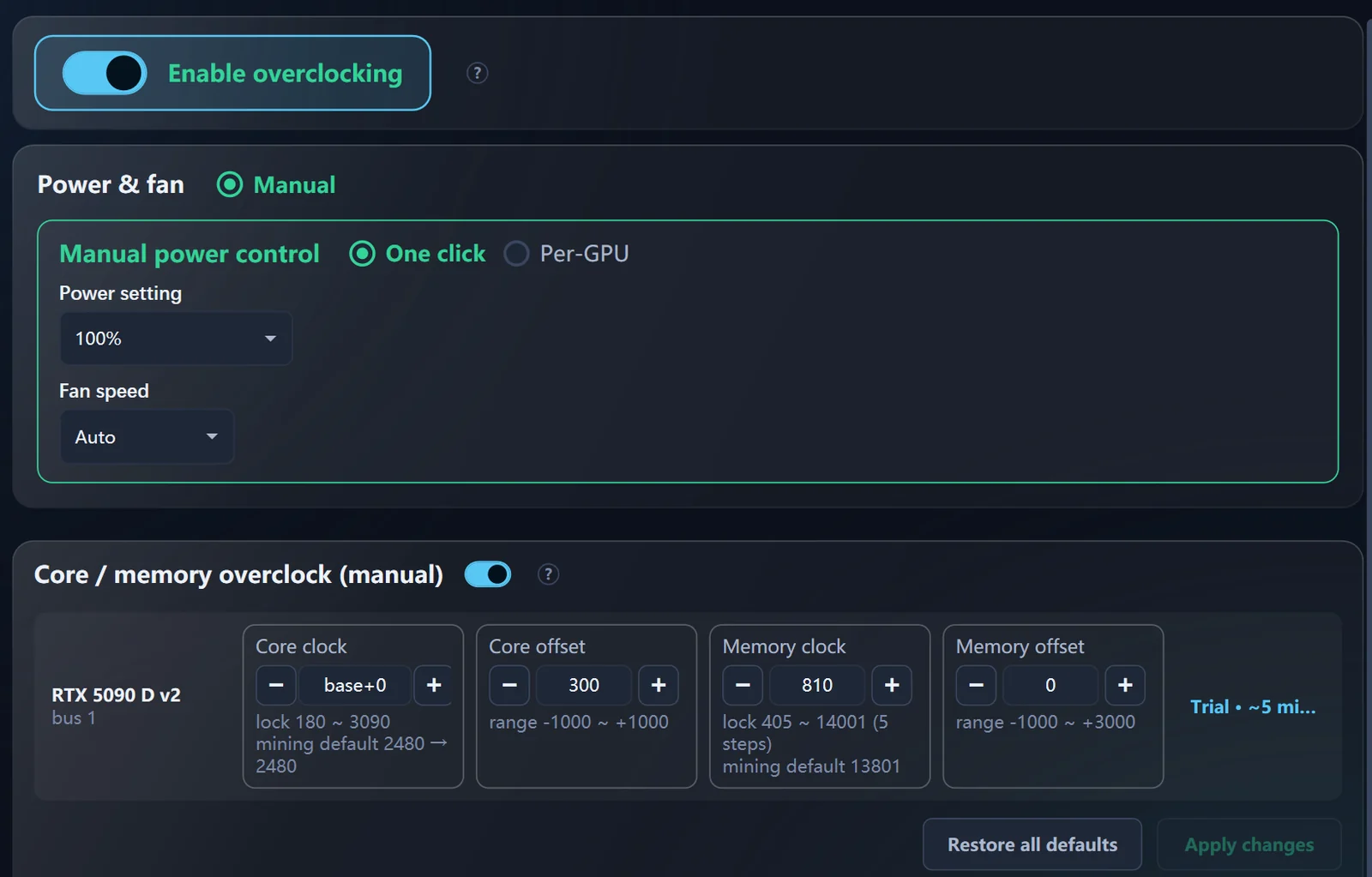
- Master switch: turn it off and Vminer never touches GPU settings
- Power: one value for every card or per card, with each card's adjustable range shown
- Fans: a fixed speed, or leave it to the driver
- Core / memory overclock: core clock, core offset, memory clock and memory offset, each in ± MHz; a 10-minute trial reverts automatically if anything goes wrong
- Back to defaults when idle: stop mining, close Vminer or turn the switch off and core / memory return to defaults
- Reset clocks in one click: every GPU's core / memory clock goes back to factory
- Tied to this PC's GPUs: change cards or PCs and old settings are dropped automatically
Full guide →
Internet cafés#
Internet café mode
- Avoid: stops mining when a listed game opens and resumes when it closes
- Sensitive: yields when someone touches the mouse or keyboard or the GPU gets busy; starts mining after 2 idle minutes
- Full power: always mines, never yields — for dedicated rigs
- Manual: doesn't mine at boot; waits for Fleet Control to wake it
- Avoid list: popular games built in; add or remove your own
- Auto power: 70% / 80% / 90% while mining, back to 100% when yielding
- Silent background: no window at boot, bring it up with a hotkey; if it's closed it restarts itself
Full guide →
Diskless & master image
- Put it in the master image: copy the whole Vminer folder — wallet, pool and mode go with it
- Keep the master image open: Update the Netbar master image manually, locally or by its fixed worker name in Fleet Control. Resource distribution does not install a new version automatically.
- Separate in Fleet Control: sign in once on the master image and every clone is its own machine
- No GPU needed to set up: the master PC can be configured without a discrete GPU
Full guide →
Remote management#
Fleet Control
- Phone or computer: Open app.vminers.com in a browser, in 8 languages. Sign in inside the client to manage the machines belonging to your account.
- The whole fleet at a glance: online status, hashrate, temperature and power — offline machines stand out
- Batch actions: Existing single-rig and batch actions can change pool, coin, mining software and Direct / CF. Options follow device capabilities and groups; unsupported legacy clients are skipped.
- Remote GPU tuning: set power and fans in bulk; core / memory overclock per machine
- Remote power: reboot or shut down; set start with Windows and mine on launch
- Earnings: earnings of your machines by coin
- Notices: the bell at the top right shows the latest notices
- Offline queue: Queued does not mean executed. Immediate actions can expire; settings follow retention policy. Check delivery, receipts and actual state after reconnection.
Full guide →
Alert bot
- Sent to Telegram: when a machine has a problem, the message goes straight to your phone
- Three alerts: offline, hashrate drop, lost GPU
- Only after 10 minutes: brief blips won't bother you
- No alert when you stop it: stopping mining or shutting down yourself doesn't trigger an alert
- In your language: uses the language set under My account in Fleet Control
- Notices too: new Vminer notices are sent to you as well
Earnings lookup
- Just enter a wallet: stats.vminers.com shows combined hashrate and earnings across pools
- Received yesterday: see what actually arrived yesterday
- GPU hashrate table: measured hashrate and power by GPU model on real rigs, updated hourly
Full guide →
Safety#
Safety & antivirus
- One-click allow: if antivirus deletes the engine, one click in System settings adds the exclusion
- Self-repair: a deleted engine downloads again automatically
- Verified downloads: the client and engines are checked against their checksums after download
- Earnings go to your own wallet: Vminer never holds your coins
Full guide →
Missing a feature? Tell us on Discord.
 Vminer