 Vminer
Help center / Power, fan & overclocking
Power, fan & overclocking
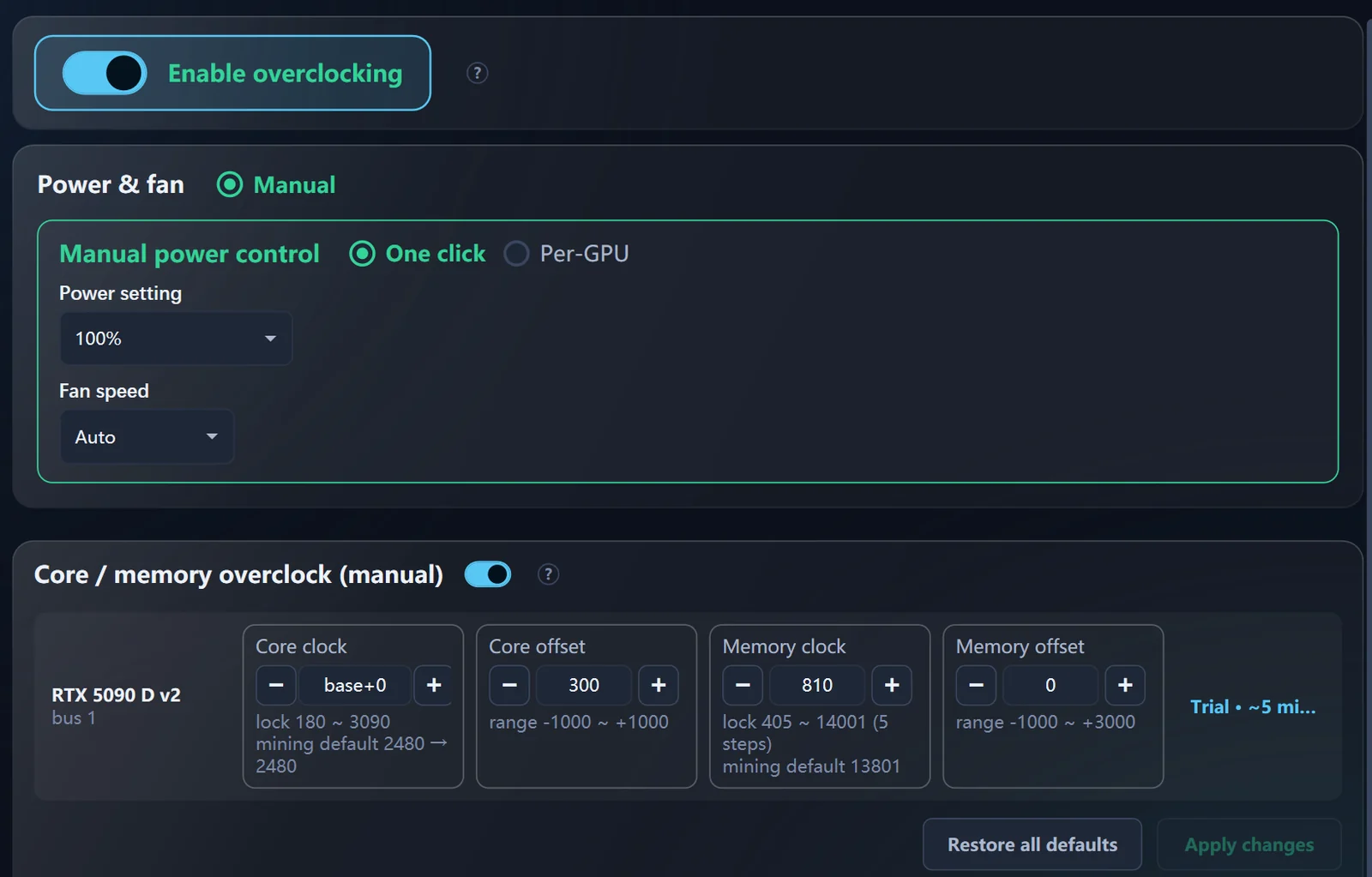
On the client's OC page, the master switch Enable OC controls power, fan and core / memory clocks. With the switch off, the client doesn't touch the GPU at all; values set by the driver or other tools stay as they are. Tuning is for NVIDIA cards; AMD cards show live status.
Power#
- One value for all cards, or per card; each card shows its own adjustable range.
- Going down to 70–80% usually costs little hashrate and cuts temperature and power bills noticeably.
- Turning on Enable OC needs Vminer running as administrator.
Fan#
A fixed speed, or leave it to the driver.
Core and memory#
- Off by default — an advanced feature. Four settings per card: core clock, core offset, memory clock, memory offset, each set in ± MHz.
- Stopping mining, closing Vminer or turning the switch off returns all four to defaults.
- Every change gets a 10-minute trial: if a card drops out, the driver resets, hashrate hits zero or it overheats, the old values come back automatically.
- After the trial it's watched for 1 more hour of mining: if the GPU hangs (full power but no hashrate, or the engine exits), that step is rolled back too.
- Each card is tuned on its own; Restore all defaults any time.
- Settings belong to this PC's cards: swap GPUs or copy the setup to another PC and the old clock settings are dropped automatically.
Remote tuning#
Signed in to Fleet Control you can set power and fan in bulk, and per rig set the four core / memory settings. See Fleet Control.
OC works while Netbar mode is on: when a seat is yielded to a customer, power goes back to 100% and fans back to automatic, and your OC settings are written back when mining resumes.